VoiceTask Meeting notes to action items
From a meeting recording to action items, on your phone
Record the meeting as a voice note on your phone, and VoiceTask writes the transcript, a short summary and the key points, and lists the action items with any dates that were mentioned. You choose which ones become tasks, and they go into your list with those dates, linked back to the note.
Updated 18 November 2026.
How it works
1. Before you start
Tell everyone you are recording. Put the phone on the table between you, not in a pocket. On Android, keep VoiceTask on screen while it records; on iPhone and iPad you can lock the screen.
2. Record a voice note
Open the voice capture and switch to Note, or tap + in Notes. Pause when the meeting breaks and resume when it starts again. When you are done, tap Save note.
3. Read the summary and the action items
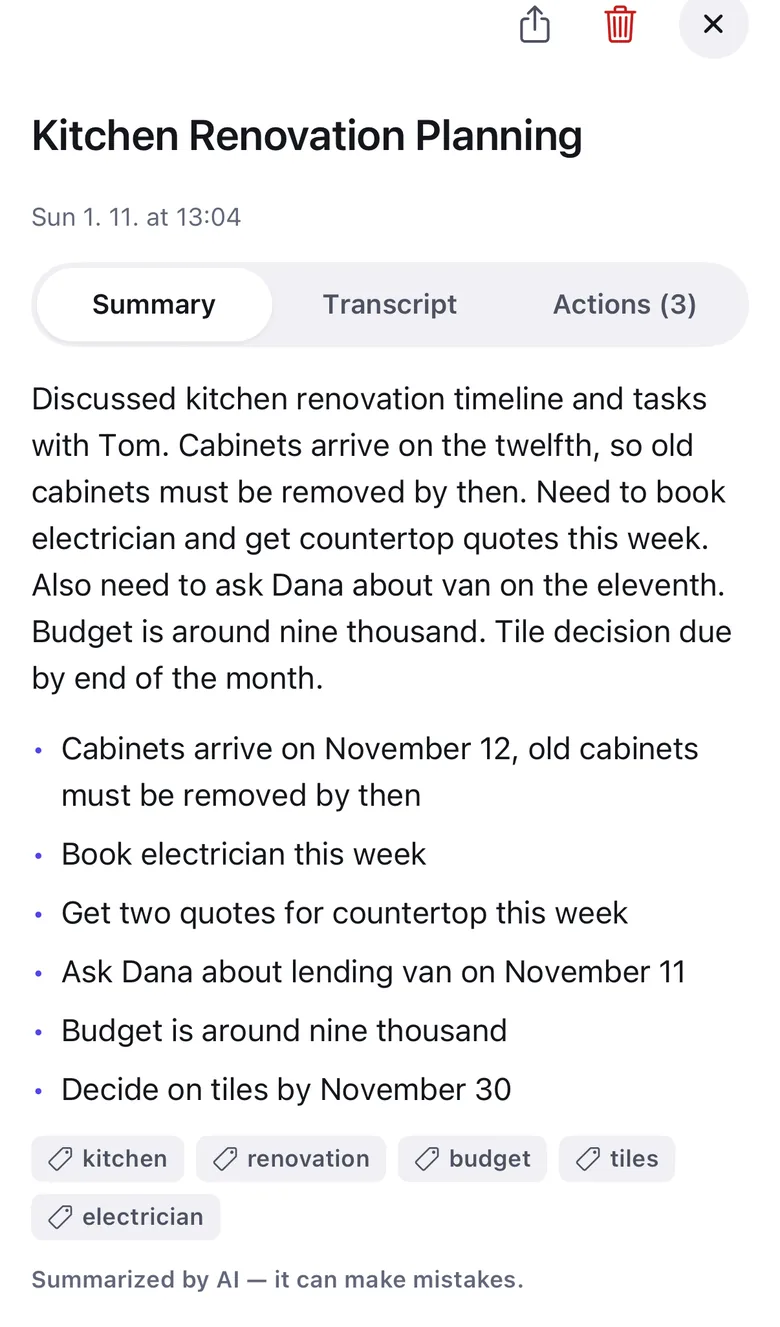
A moment later the note has a title and three tabs. Summary gives one or two sentences, the key points and a few tags. Transcript has the full text; tap a paragraph to play the recording from there. Actions lists the to-dos that were said.
4. Add the action items as tasks
On the Actions tab, add the items you want as tasks. Each one keeps the date that was said, so “by Friday” shows up on Friday. Items that someone else agreed to do start with their name when it was mentioned, so you can tell your own to-dos from the ones you are waiting for. The note stays in Notes, linked to its tasks.
What gets picked up
| Said in the meeting | Action item |
|---|---|
| “I’ll send Dana the revised budget by Friday.” | Send Dana the revised budget, due Friday |
| “Martin, can you finish the backend tests before the release?” | Martin: finish the backend tests |
| “We still need two quotes for the countertop.” | Get two quotes for the countertop |
| “The cabinets arrive on the twelfth.” | A key point in the summary, not a task |
Only things someone says they or the team will do become action items; facts and background go into the summary. The exact wording can differ from this example.
Share the minutes and find them later
The share button sends the title, summary, key points, action items and transcript as text, to email, a chat or your notes app. Search in Notes looks through titles, summaries and full transcripts, so “what did we decide about the van?” is a search away. Pin the notes you come back to.
Recording your own thoughts rather than a meeting? See how to turn voice notes into tasks.
What it doesn’t do
- No meeting bot. It doesn’t join or record Zoom, Teams or Meet calls. It records what your phone’s microphone hears in the room.
- No speaker names. The transcript doesn’t say who said what. Action items for someone else start with their name only when the name was said.
- Not for all-day recording. A recording much longer than an hour can be too large to upload; record a long workshop in parts.
- On Android, keep it on screen. Switching to another app pauses the recording there (the screen stays on while it records). On iPhone and iPad it keeps recording when the screen locks.
- No team workspace. Notes aren’t sent to the attendees; you share the summary yourself.
- The summary is written by AI and can be wrong. The app says so under every summary. Check it before you send it on.
VoiceTask at a glance
- Works on
- iPhone, iPad and Android phones and tablets, and any browser with VoiceTask Web (app.voicetask.app), synced with the app. Recording by voice happens in the phone app; there is no downloadable Windows or Mac app. AI assistants such as ChatGPT, Claude and Cursor can connect to your VoiceTask account to read and manage your tasks.
- Free plan
- Free voice captures every week, unlimited typing, 3 projects, reminders, calendar sync and voice notes.
- VoiceTask Pro
- Unlimited voice captures and projects for $9.99 a month or $49.99 a year in the US; prices vary by country. Both plans start with 7 days free.
- Languages
- 40, for speaking and for the whole app.
- While you talk
- Live captions, and each task appears as a card before you finish. Say “actually” to change one.
- From one sentence
- Several tasks, with dates, times, reminders, repeats and priorities.
- Voice notes
- A transcript, a title, a short summary and action items you can add as tasks.
- Without opening the app
- Siri, Shortcuts and the Action button on iPhone; a widget and a Quick Settings tile on Android.
- Privacy
- You are asked before any voice is sent. Audio is discarded after transcription, and nothing is sold or used to train AI.
Facts as of 28 November 2026.
Questions people ask
Can AI turn a meeting recording into action items?
Yes. Once the recording is transcribed, an AI model can pick out who agreed to do what and by when. VoiceTask does the transcript, the summary and the action items in one step, and lets you add the items as tasks with their dates. Read them before you rely on them.
Can I record a meeting on my iPhone and get a transcript?
Yes. Record a voice note in VoiceTask; it keeps recording when the screen locks, and after you save it you get the transcript, a title, a summary and the action items. On Android, keep the app on screen while it records.
How is it different from a meeting assistant?
Meeting assistants join video calls, label speakers and share notes with a team. VoiceTask is a personal app: it records what your phone hears and turns the action items into your own tasks, with dates and reminders, next to the rest of your list.
Is it free?
Yes. The free plan includes voice captures every week, unlimited typing, 3 projects, reminders, calendar sync, notes and summaries. VoiceTask Pro makes voice captures and projects unlimited, for $9.99 a month or $49.99 a year in the US (prices vary by country), with 7 days free.
Which languages does it understand?
40. The transcript, the summary and the action items are written in the language the meeting was held in; nothing is translated.
Who can hear my recordings?
The recording stays on your phone so you can play it back. For the transcript the audio is sent to our speech-recognition provider, and the text to an AI language-model provider for the summary; the audio is discarded after transcription, and nothing is sold or used to train AI models. The app asks for your consent before any voice is sent.
Do I need to tell people I’m recording?
Yes, tell everyone before you start. In many places recording a conversation without consent is not allowed, and people speak more freely when they know.

