VoiceTask AI assistants
Connect VoiceTask to ChatGPT, Claude and your AI tools
Say your to-dos into VoiceTask on the go. Back at your computer, ChatGPT, Claude, Cursor or any other assistant that supports MCP can see what’s on your plate, plan the day with you, and add, change or tick off tasks in your list.
Server address (MCP, streamable HTTP)
https://mcp.voicetask.app/mcp
Sign in with your VoiceTask account. Free on every plan.
What you can ask
Your assistant reads your list and then does the work in plain language. A few things people ask:
Plan the day
- “What’s on my plate today? Put anything overdue first.”
- “Plan my afternoon around the three most important tasks.”
- “Which tasks did I add this week without a date?”
Add and change tasks
- “Add ‘send the invoice to Marta’ for Friday at 10 with a reminder.”
- “Turn these meeting notes into tasks in my Work project.”
- “I finished the slides and booked the flights. Tick them off.”
- “Move the dentist call to Monday morning.”
Review
- “Give me a weekly review: what I finished, what slipped, what’s next.”
- “What has been sitting in my inbox the longest?”
Voice notes
- “Summarize this week’s voice notes and list the action items I haven’t added yet.”
- “What did I say in yesterday’s voice note about the kitchen?”
While you work in Claude Code, Cursor or VS Code
- “What did I note about this project on my walk this morning?”
- “Add a task to review this pull request tomorrow at 9.”
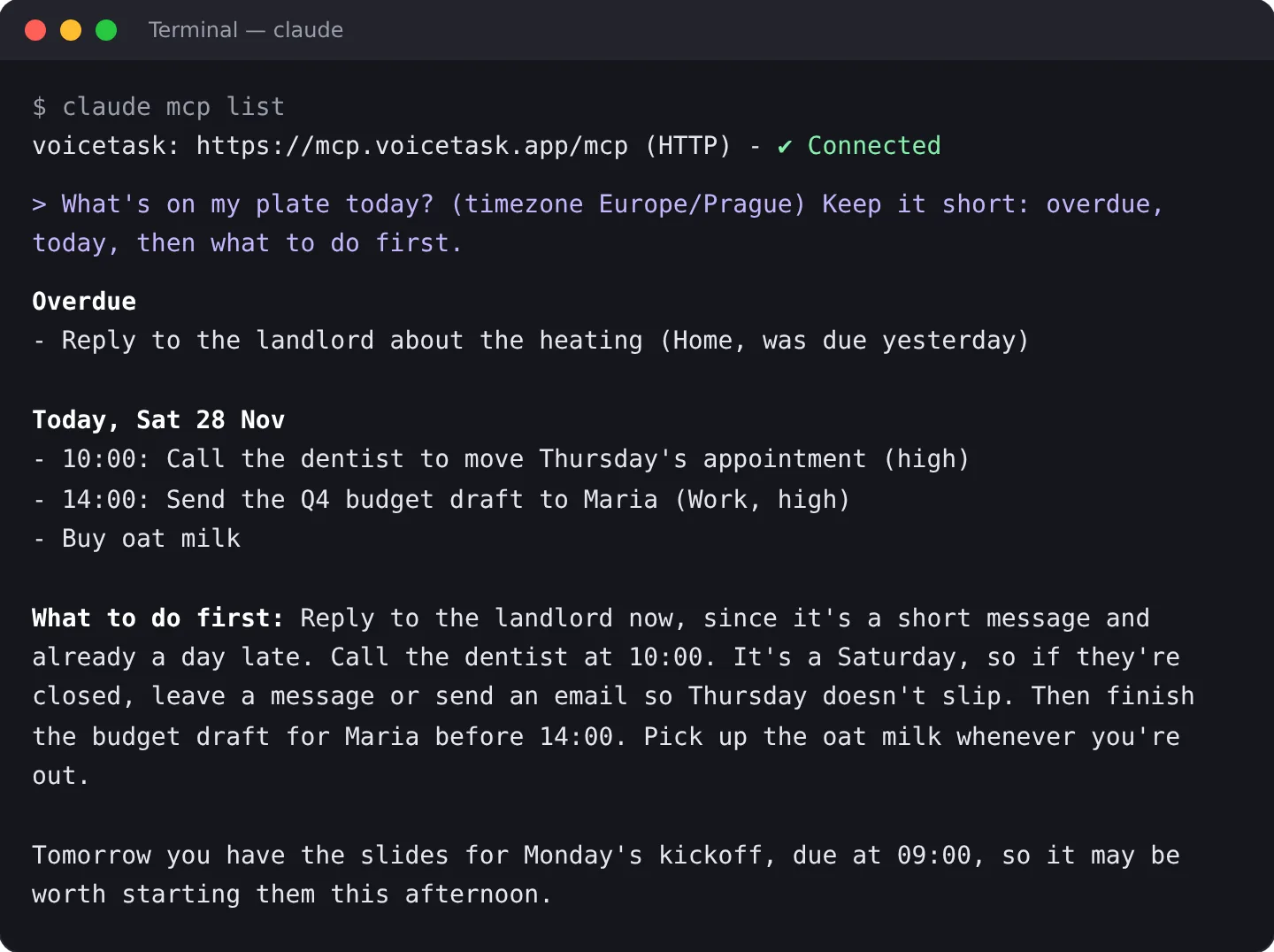
claude mcp list and its output; then the prompt as it was typed and Claude Code’s reply, word for word.How it works
Capture on the go. Talk to VoiceTask on your phone. Tasks, reminders and voice notes appear while you speak, and they are backed up to your account.
Connect once. Add the address above to your assistant and sign in with your VoiceTask account. You choose what it may do.
Ask. Your assistant reads your tasks and notes when you ask, and changes them only within the permissions you gave. Its changes appear in the app the next time it syncs.
Set it up in your assistant
Every app below uses the same address and the same VoiceTask sign-in. Most open the sign-in page by themselves; tools that can’t, such as automations and scripts, use a personal API key instead.
Chat assistants
ChatGPTchatgpt.com on the web
On the web, open chatgpt.com/plugins, click + and choose Add custom MCP server.
Name it VoiceTask, paste the server address under Connection and choose OAuth as the authentication.
https://mcp.voicetask.app/mcpClick I understand and want to continue, then Create as a plugin, and install it.
Sign in to VoiceTask on the page that opens and choose what ChatGPT may do. Then mention @VoiceTask in a chat, or just ask about your tasks.
ChatGPT’s help lists custom MCP servers on the web for Business, Enterprise and Edu workspaces (an admin or owner adds them) and for Pro, which can only read. ChatGPT can’t send API keys, so it always signs in. How often it asks before changing something is up to you: Settings → Plugins → Permissions.
Check it works: ask “Which VoiceTask account am I connected to?”
Claudeclaude.ai, Claude Desktop and mobile
Add to Claude opens Claude’s add-connector form with the name and address filled in
Click Add to Claude, or open Customize → Connectors in Claude (claude.ai or the desktop app), click Add and choose Add custom connector.
Name it VoiceTask, paste the server address and click Continue.
https://mcp.voicetask.app/mcpKeep the sign-in settings Claude detects (VoiceTask uses OAuth), click Add, then Connect.
Sign in to VoiceTask and choose what Claude may do. In a chat, switch VoiceTask on under + → Connectors if it isn’t already, and ask away. Once added, it works in the Claude mobile apps too.
Every Claude plan can add custom connectors; the free plan allows one. On Team and Enterprise, an owner adds VoiceTask first under Organization settings → Connectors → Add → Custom → Web, then each member clicks Connect and signs in with their own VoiceTask account.
Check it works: ask “Which VoiceTask account am I connected to?”
Coding agents and editors
Claude Codeterminal, IDE extensions and desktop
Sign in (recommended)
Add the server for all your projects:
Terminalclaude mcp add --transport http voicetask --scope user https://mcp.voicetask.app/mcpIn Claude Code, type
/mcp, choose voicetask and Authenticate. Your browser opens the VoiceTask sign-in. (Or runclaude mcp login voicetask.)
With an API key (headless, CI)
Create a key on your account page, keep it in an environment variable and add the server:
Terminalexport VOICETASK_API_KEY=vt_pat_… claude mcp add --transport http voicetask --scope user https://mcp.voicetask.app/mcp \ --header "Authorization: Bearer $VOICETASK_API_KEY"Or share the server with a project in
.mcp.json; everyone uses their own key from their environment:.mcp.json{ "mcpServers": { "voicetask": { "type": "http", "url": "https://mcp.voicetask.app/mcp", "headers": { "Authorization": "Bearer ${VOICETASK_API_KEY}" } } } }
Check it works: ask “Which VoiceTask account am I connected to?”
CursorAI code editor
Add to Cursor opens Cursor and asks to install the server
Click Add to Cursor, or add VoiceTask to
~/.cursor/mcp.json(all projects) or.cursor/mcp.json(one project):~/.cursor/mcp.json{ "mcpServers": { "voicetask": { "url": "https://mcp.voicetask.app/mcp" } } }Cursor asks you to sign in; if it doesn’t, open Customize in the sidebar, find voicetask under MCP and click Connect. Sign in to VoiceTask and choose what the agent may do.
Ask the agent in chat; it calls VoiceTask’s tools when your question needs them.
Use sign-in in Cursor rather than an API key: Cursor currently ignores an Authorization header for servers that offer sign-in.
Check it works: ask the agent “Which VoiceTask account am I connected to?”
VS Code with GitHub CopilotCopilot Chat in agent mode
Install in VS Code opens VS Code and asks to install the server
Click Install in VS Code, or run MCP: Add Server from the Command Palette, choose HTTP, paste the address and name it voicetask. For one workspace, add it to
.vscode/mcp.json:.vscode/mcp.json{ "servers": { "voicetask": { "type": "http", "url": "https://mcp.voicetask.app/mcp" } } }Or from a terminal, for your user profile:
Terminalcode --add-mcp '{"name":"voicetask","type":"http","url":"https://mcp.voicetask.app/mcp"}'Start the server when VS Code offers it, sign in to VoiceTask when asked, and use the tools in Copilot Chat’s agent mode.
On Copilot Business and Enterprise an admin must allow MCP servers in Copilot; it is off by default. Free, Pro and personal plans don’t need it.
Check it works: ask Copilot “Which VoiceTask account am I connected to?”
CodexCLI, IDE extension and desktop app
Sign in (recommended)
Add the server; Codex notices that VoiceTask uses sign-in and opens it in your browser:
Terminalcodex mcp add voicetask --url https://mcp.voicetask.app/mcpTo sign in again later:
Terminalcodex mcp login voicetaskIn the IDE extension: gear icon → MCP servers → Add server → Streamable HTTP. In the desktop app: Settings → MCP servers → Add server.
With an API key
Add this to
~/.codex/config.tomland exportVOICETASK_API_KEYin your shell:~/.codex/config.toml[mcp_servers.voicetask] url = "https://mcp.voicetask.app/mcp" bearer_token_env_var = "VOICETASK_API_KEY"
The CLI, the IDE extension and the desktop app share ~/.codex/config.toml, so one setup covers all three.
Gemini CLIterminal agent
Sign in (recommended)
Add the server for all your projects:
Terminalgemini mcp add --transport http -s user voicetask https://mcp.voicetask.app/mcpSign-in starts the first time a VoiceTask tool runs; manage it with
/mcp auth voicetask.
With an API key
Add this to
~/.gemini/settings.jsonand exportVOICETASK_API_KEYbefore starting Gemini CLI:~/.gemini/settings.json{ "mcpServers": { "voicetask": { "httpUrl": "https://mcp.voicetask.app/mcp", "headers": { "Authorization": "Bearer ${VOICETASK_API_KEY}" } } } }
Since June 2026, people on Gemini CLI’s free tier and Google One plans use Antigravity CLI instead; there, add VoiceTask to ~/.gemini/config/mcp_config.json with "serverUrl": "https://mcp.voicetask.app/mcp".
Devin Desktop (formerly Windsurf)the Windsurf editor’s new name
In the agents window open Customize → MCPs, choose This computer and open the config file, or add the server from a terminal:
Terminaldevin mcp add -s user voicetask https://mcp.voicetask.app/mcp devin mcp login voicetaskThe config file is
~/.config/devin/mcp_config.json:~/.config/devin/mcp_config.json{ "mcpServers": { "voicetask": { "url": "https://mcp.voicetask.app/mcp" } } }Sign in to VoiceTask when asked; if the sign-in expires, click Authenticate next to the server.
Launchers and automation
RaycastMac, Windows and iOS
Run the Install MCP Server command.
Name it VoiceTask, choose HTTP as the transport, paste the address and set the OAuth type to Dynamic. Save with ⌘ ↵.
https://mcp.voicetask.app/mcpClick Sign In, sign in to VoiceTask, then use @voicetask in AI Chat.
MCP servers in Raycast need Raycast Pro.
n8nworkflows and AI agents
Add an MCP Client Tool node to your AI Agent.
Set Endpoint to the server address and Server Transport to HTTP Streamable.
https://mcp.voicetask.app/mcpUnder Authentication choose Bearer Auth and paste a VoiceTask API key as the Bearer Token, or choose MCP OAuth2 (leave Register Client Automatically on) to sign in instead.
Under Tools to Include, pick only what the workflow needs.
Automations run without you watching: give their key only the permissions they need, and leave “Add & edit tasks” off for workflows that only read.
Anything else
Any other MCP clientZed, JetBrains, Kiro, Goose, your own agent
Add a remote server (also called HTTP or streamable HTTP) with this address. Clients that support MCP sign-in find the VoiceTask sign-in page by themselves.
https://mcp.voicetask.app/mcpIf the client can’t sign in, create an API key on your account page and send it as a header:
Authorization: Bearer vt_pat_…If the client only runs local (stdio) servers, bridge it with
mcp-remote:mcp.json{ "mcpServers": { "voicetask": { "command": "npx", "args": ["-y", "mcp-remote", "https://mcp.voicetask.app/mcp"] } } }
Personal API keys for scripts and automations
Some tools can’t open a sign-in page: n8n and other automations, scripts, scheduled jobs. For them, sign in at mcp.voicetask.app/account, open API keys and create a key with only the permissions it needs. The key starts with vt_pat_ and is shown once; the tool sends it as Authorization: Bearer <key>.
Treat a key like a password: keep it in an environment variable or your tool’s secret store, never in a shared file. You can give it an expiry date and revoke it on the same page at any time.
What your assistant can do
VoiceTask gives your assistant a small set of tools. It picks them by itself, so you never need their names; they are listed for developers and for checking what a connection may do.
| What it does | Needs |
|---|---|
See what’s on your plate in one step: today, overdue, the next 7 days, the inbox and your projects get_overview | Read tasks |
List tasks for today, overdue, upcoming, the inbox, all open or completed ones, a date range, a project or search words list_tasks | Read tasks |
Open one task with its notes, subtasks, reminder and repeat get_task | Read tasks |
List your projects with their number of open tasks list_projects | Read tasks |
Search your tasks and voice notes (the standard search tool some assistants use for research) search | Read tasks (and voice notes, if allowed) |
Open one search result in full fetch | Read tasks (and voice notes, if allowed) |
List your recent voice notes with their titles, dates and summaries list_voice_notes | Read voice notes |
Read one voice note: summary, key points, action items and transcript get_voice_note | Read voice notes |
Add up to 25 tasks at once, with date, time, reminder, repeat, priority, project and subtasks (a new project only while you have fewer than 3 active ones) add_tasks | Add & edit tasks |
Change a task’s title, notes, date, priority, project, reminder or repeat update_task | Add & edit tasks |
Tick tasks off; a repeating task moves on to its next date, as in the app complete_tasks | Add & edit tasks |
Undo a completion reopen_task | Add & edit tasks |
Create a project while you have fewer than 3 active ones; more projects can be created in the app create_project | Add & edit tasks |
Show which account is connected, what this connection may do and today’s remaining limits get_account_info | Read tasks |
Some assistants also offer three ready-made prompts from VoiceTask: plan my day, weekly review and tasks from my notes. In Claude Code, VS Code and Gemini CLI they appear as slash commands.
What it can’t do
- Delete tasks, projects or voice notes. Deleting stays in the app.
- Record or play audio. Voice capture happens in the app, and voice-note audio is never synced, so no assistant can get it.
- Share, send or e-mail anything for you, or see anyone else’s list.
- Ring a reminder by itself. Reminders are set by the app on your phone: for a task added from an assistant, that happens the next time VoiceTask syncs there, usually when you open it.
- See tasks that live only on your phone. If you use VoiceTask without signing in, there is nothing to connect yet.
Sign-in and permissions
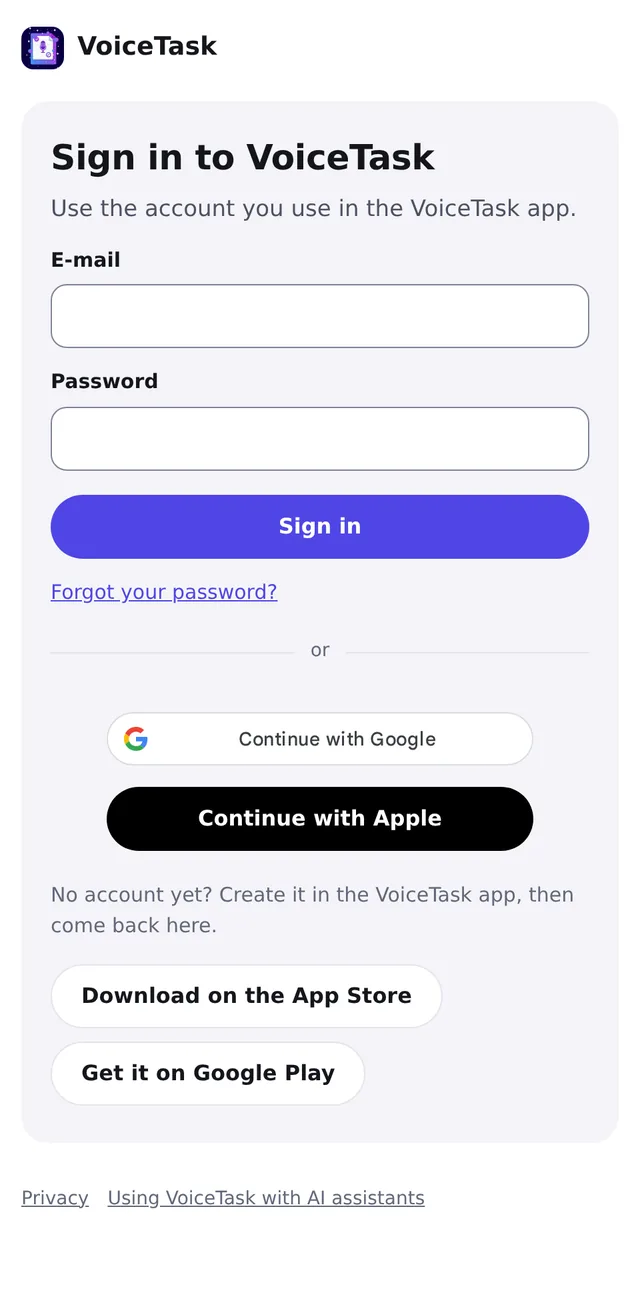
Your assistant connects to your VoiceTask account, the one you sign in with in the app (Apple, Google or e-mail). The first time, it opens a VoiceTask page at mcp.voicetask.app where you sign in. Your password goes to VoiceTask, never to the assistant.
Accounts are created in the app. If you have never signed in there, open VoiceTask, go to Settings → Account and sign in; with Apple or Google it takes one tap.
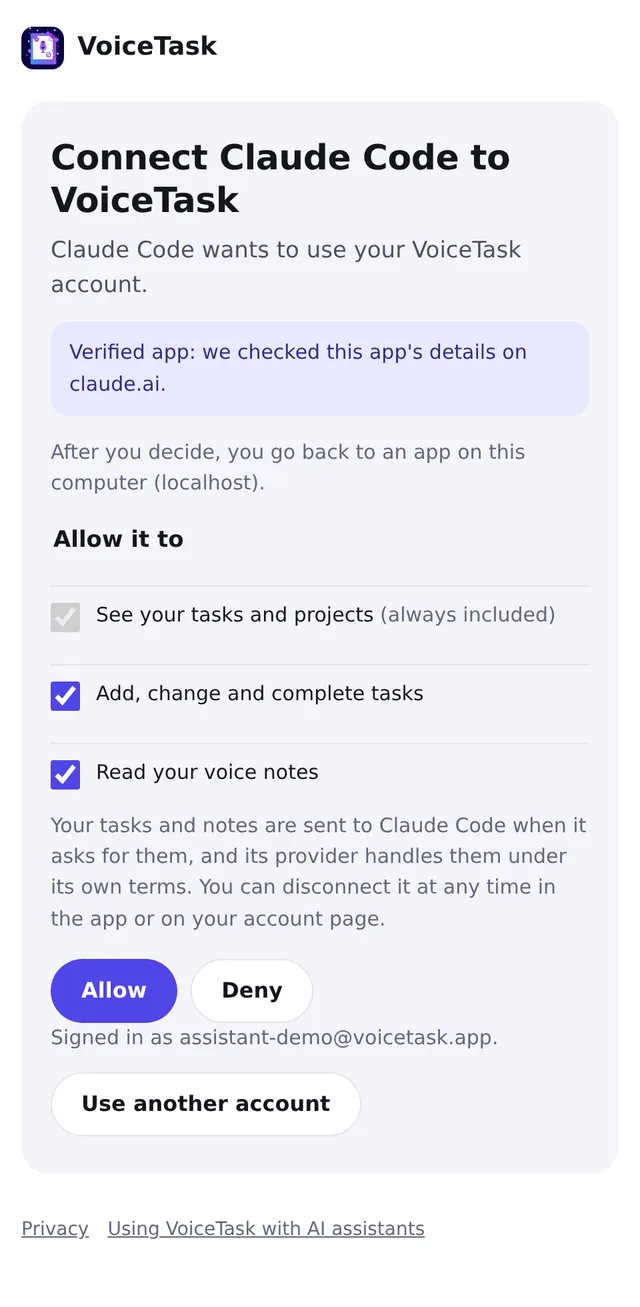
Then you choose what this connection may do:
- Read tasks. See your tasks and projects. Every connection has this.
- Add & edit tasks. Add tasks, change them, tick them off or reopen them, and create projects while you have fewer than 3 active ones (more in the app). Nothing can be deleted.
- Read voice notes. Read the text of your voice notes: summary, key points, action items and transcript. Never the audio, which stays on your phone.
You can change your mind at any time. Disconnect an assistant in the app under Settings → Connected assistants, on your account page at mcp.voicetask.app/account, or in the assistant itself. Access stops at once.
Deleting your VoiceTask account disconnects every assistant and deletes every API key.
Privacy, in plain words
- An assistant sees only your own account, and only what you allowed: your tasks and projects, plus the text of your voice notes if you ticked that box.
- What it reads goes to the company that runs the assistant and is handled under that company’s terms and privacy policy, not ours. Connect only assistants you trust with your list.
- VoiceTask runs no AI of its own on what your assistant asks. Your assistant does the thinking; our server only reads and saves your tasks.
- We record that a request happened (which app, which tool, when, whether it worked), never what was asked or what came back.
- Connections use tokens that we store only as one-way hashes, and they never contain your password.
- We don’t sell your data or use it for ads or to train AI models. What the assistant’s company does with your chats is set by its own settings and terms.
The full text is in our privacy policy, under Connected AI assistants.
Price and limits
- Connecting an assistant is free on every VoiceTask plan, including the free one. Your assistant’s own plan can matter: some apps let only paid plans add custom connections (see the notes in the setup above).
- Fair use per account: up to 60 requests a minute and 1,000 a day, 25 tasks in one request and 300 new tasks a day. If you reach a limit, your assistant says so; daily limits reset at midnight UTC.
- Your assistant sees what is backed up to your account. Changes from your phone show up about a minute after they sync; changes from the assistant reach your phone the next time the app syncs.
- On a very busy day for the service, your assistant may get your list as of the last backup and tells you the time, and adding or changing tasks can pause until the next day.
VoiceTask at a glance
- Works on
- iPhone, iPad and Android phones and tablets, and any browser with VoiceTask Web (app.voicetask.app), synced with the app. Recording by voice happens in the phone app; there is no downloadable Windows or Mac app. AI assistants such as ChatGPT, Claude and Cursor can connect to your VoiceTask account to read and manage your tasks.
- Free plan
- Free voice captures every week, unlimited typing, 3 projects, reminders, calendar sync and voice notes.
- VoiceTask Pro
- Unlimited voice captures and projects for $9.99 a month or $49.99 a year in the US; prices vary by country. Both plans start with 7 days free.
- Languages
- 40, for speaking and for the whole app.
- While you talk
- Live captions, and each task appears as a card before you finish. Say “actually” to change one.
- From one sentence
- Several tasks, with dates, times, reminders, repeats and priorities.
- Voice notes
- A transcript, a title, a short summary and action items you can add as tasks.
- Without opening the app
- Siri, Shortcuts and the Action button on iPhone; a widget and a Quick Settings tile on Android.
- Privacy
- You are asked before any voice is sent. Audio is discarded after transcription, and nothing is sold or used to train AI.
Facts as of 28 November 2026.
Questions
What is MCP?
The Model Context Protocol, an open standard that lets AI assistants use tools and data from other apps. VoiceTask runs an MCP server at https://mcp.voicetask.app/mcp, so any assistant that can add a remote MCP server can connect to your tasks.
Which AI assistants work with VoiceTask?
ChatGPT, Claude (on the web, in the desktop and mobile apps and in Claude Code), Cursor, VS Code with GitHub Copilot, Codex, Gemini CLI, Windsurf, Raycast and n8n, and any other app that can add a remote MCP server with sign-in (OAuth) or an API key.
Is it free?
Yes. Connecting assistants is free on every VoiceTask plan, with fair-use limits. Some assistants allow custom connections only on their paid plans.
Do I need the VoiceTask app?
Yes, for the account: you sign in once in the app, with Apple, Google or e-mail, and that account is what your assistant connects to. There is no sign-up on the web yet.
Can the assistant delete my tasks?
No. It can add, change, complete and reopen tasks and create projects, and only if you allowed “Add & edit tasks”. Deleting is only possible in the app.
Does the assistant hear my voice recordings?
No. Voice-note audio stays on your phone and is never synced. If you allow it, an assistant can read the text of a note: the summary, key points, action items and transcript.
Will a reminder ring if my assistant adds the task?
Yes, once your phone has the task. Reminders are set by the VoiceTask app on your phone, so a reminder for a task added from an assistant is scheduled the next time the app syncs there, usually when you open it.
How do I disconnect an assistant?
In the app under Settings → Connected assistants, on mcp.voicetask.app/account, or in the assistant’s own settings. Access stops at once.
Can I use VoiceTask on a computer?
Yes. VoiceTask is on the App Store for iPhone and iPad and on Google Play for Android phones and tablets. On a computer, VoiceTask Web shows the same tasks, projects and voice notes in any browser at https://app.voicetask.app, synced with the app: sign in with the account you use on your phone. Recording by voice happens in the phone app. More: https://voicetask.app/web/ You can also connect ChatGPT, Claude, Cursor and other AI assistants to your account: https://voicetask.app/ai-assistants/
Related
Setup steps checked against each app’s own help pages on 28 November 2026.

